Not everyone who helps run IT needs the keys to everything. You can now give a colleague admin rights over just apps, just groups or just users, so they can do their part without seeing or changing the rest of ShiftControl.
How It Works
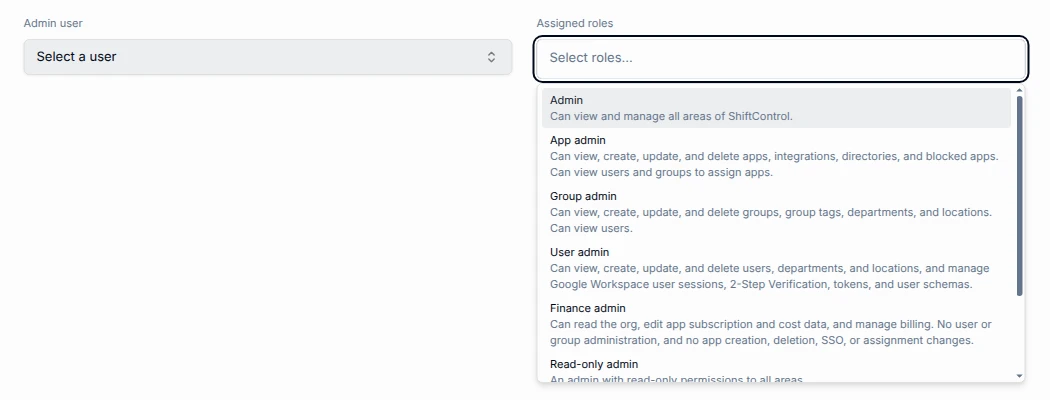
Three new admin roles are available on the User roles screen:
- App admin manages apps, app integrations, directories and blocked apps, and can see users and groups to assign apps
- Group admin manages groups, group tags, departments and locations, and can see users
- User admin manages users, departments and locations, plus Google Workspace user sessions, 2-Step Verification, tokens and user schemas
People with one of these roles see only the menus and screens their role allows.
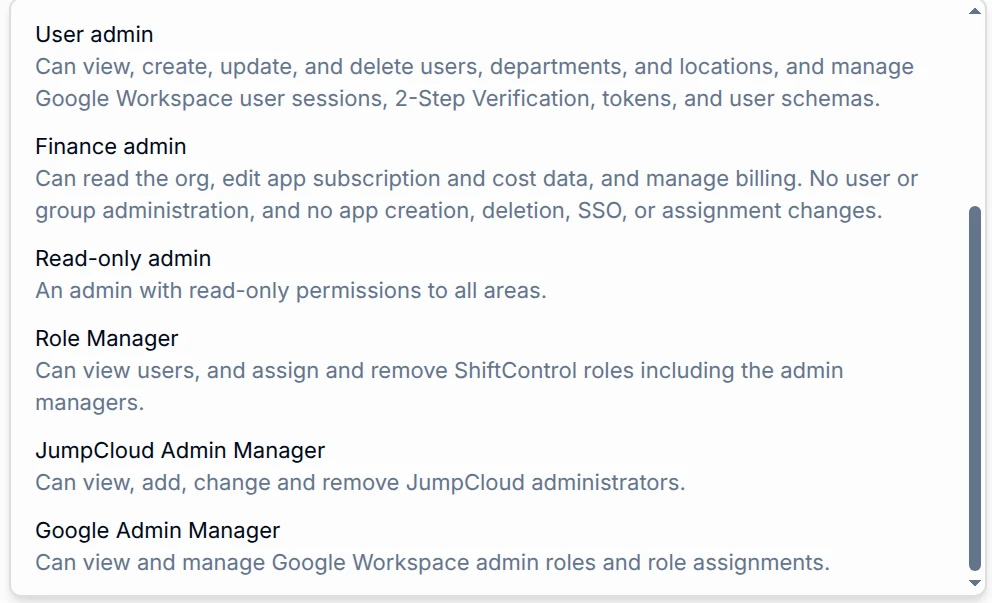
Three more roles control who can manage your admins:
- Role Manager can assign and remove ShiftControl roles, including the two roles below
- JumpCloud Admin Manager can add, change and remove JumpCloud administrators
- Google Admin Manager can manage Google Workspace admin roles and role assignments
The JumpCloud and Google roles only appear when that directory is connected. When a new organization signs up, its first admin gets Role Manager and the manager role for its directory. ShiftControl will not let you remove the last Role Manager in your organization.
Getting Started
- Open Settings and select User roles
- Select Add admin user, or open an existing admin
- Choose the person, then pick one or more roles under Assigned roles. Each role shows a short description of what it allows
- Select Save changes