Someone’s last day is Friday. A new hire starts on the first of the month. A contractor’s engagement wraps up in three weeks. If your directory is Google Workspace, each of those has meant a calendar reminder and a well-timed click, because Google has no way to schedule a suspension or a reactivation on its own. Now ShiftControl keeps the schedule for you.
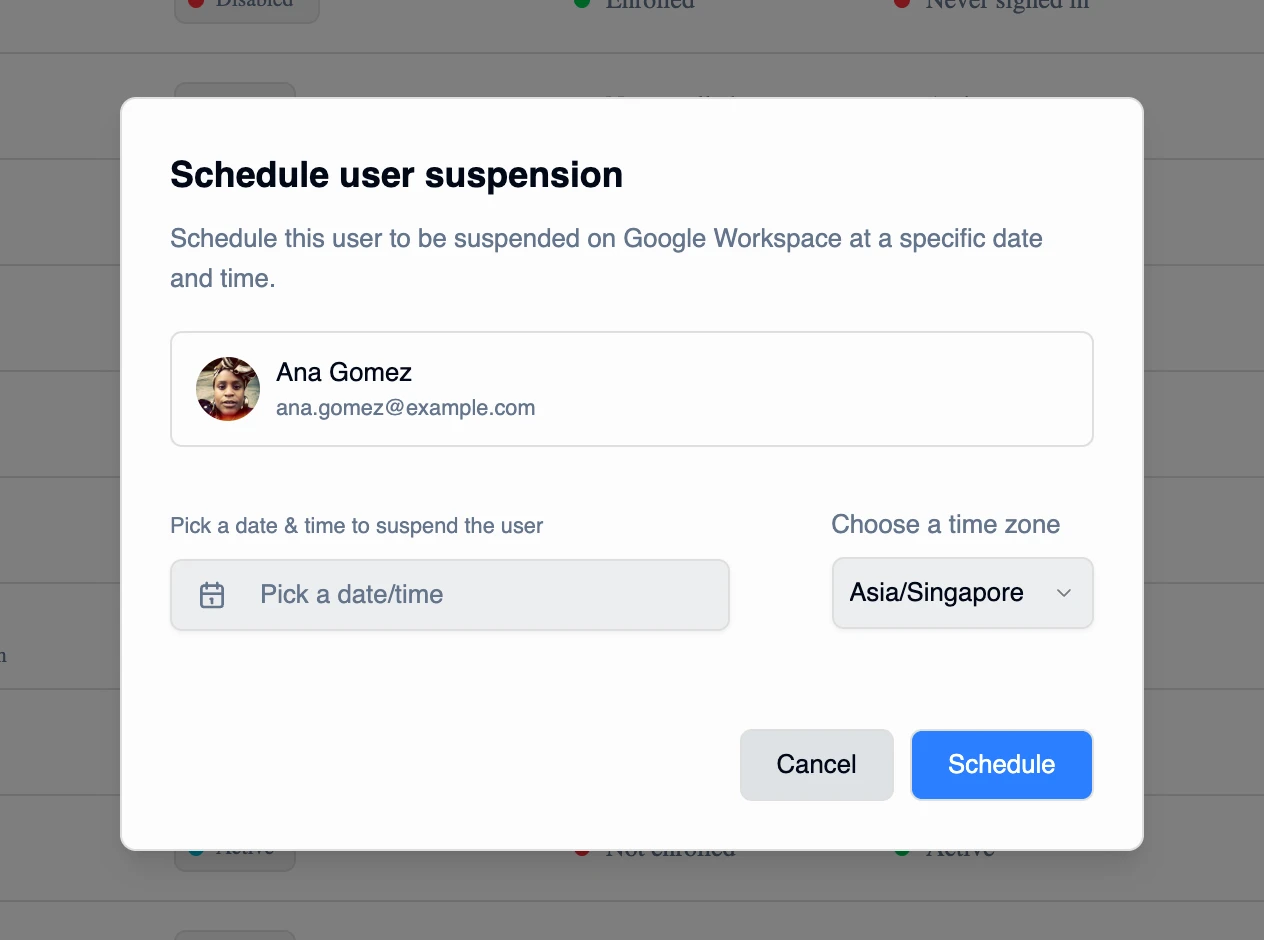
Pick a user, choose a date and time, and ShiftControl suspends or reactivates the account when the moment arrives. Offboardings land on time, people returning from leave come back on the right morning, and nobody has to remember to be at their desk at 17:00.
How It Works
- Schedule from the row menu or in bulk. Any Google Workspace user can be scheduled for suspension or activation, one at a time or several at once.
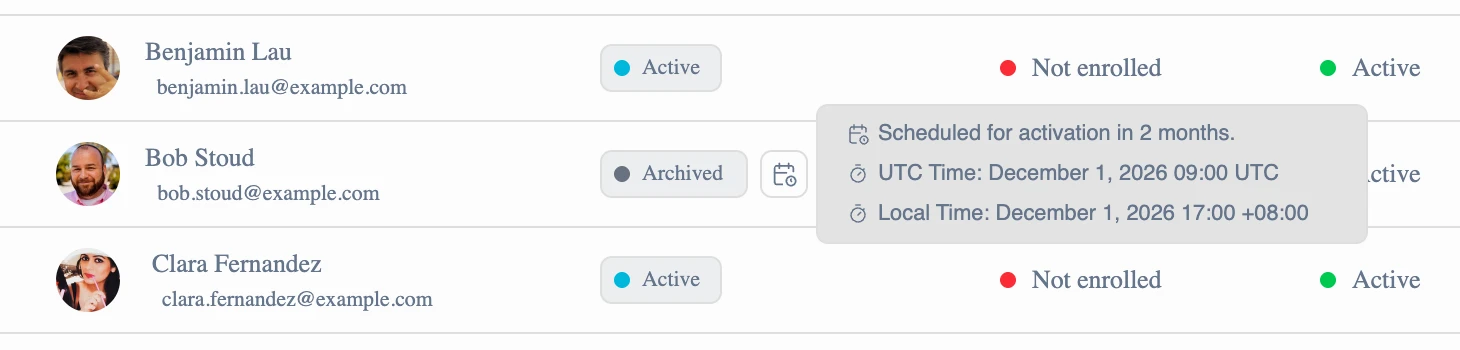
- You can see it’s pending. A scheduled user gets a small calendar marker beside their status in Manage Users. Hover it to see when the change runs, in UTC and in your local time.
- Cancel from the same menu. A scheduled change can be cancelled right up until it runs.
- Runs within a minute of the time you set. Not at the next nightly sync.
- Everything downstream still happens. A scheduled suspension goes through the same path as a manual one, so offboarding work items, group re-evaluation and the audit trail behave exactly as they do today. Scheduling an activation on an archived account un-archives it as well.
- Deleting a user cancels their schedule quietly, with no failure email.
- Failures don’t go unnoticed. If Google refuses a scheduled change after retries, your org’s Owners and Admins get an email so nothing is silently skipped.
Getting Started
- Open Manage Users and find a Google Workspace user.
- Open the row menu and choose the schedule option: suspension for someone leaving, activation for someone joining or returning.
- Pick the date and time, then confirm. A calendar marker appears beside the user’s status while the change is pending.
- Changed your mind? Open the same menu and cancel the scheduled change.
If you drive ShiftControl through the MCP tools, disable_user and enable_user now accept a scheduled time, and cancel_scheduled_user_state undoes one.