Onboarding, access requests, approvals and follow-up tasks can all pile up in different places. Work Items gives your team one queue to see what needs attention, who owns it and what has already happened.
How It Works
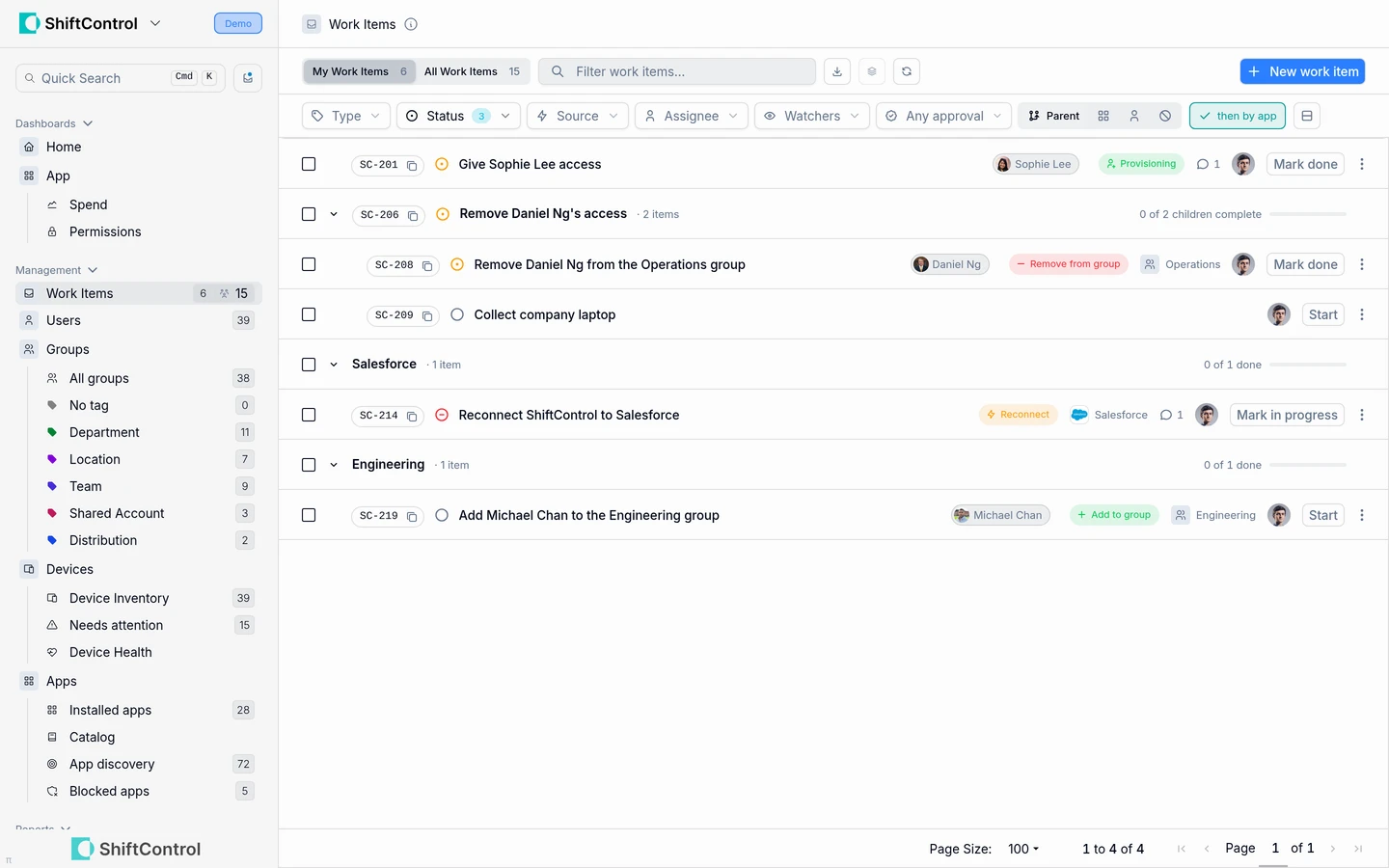
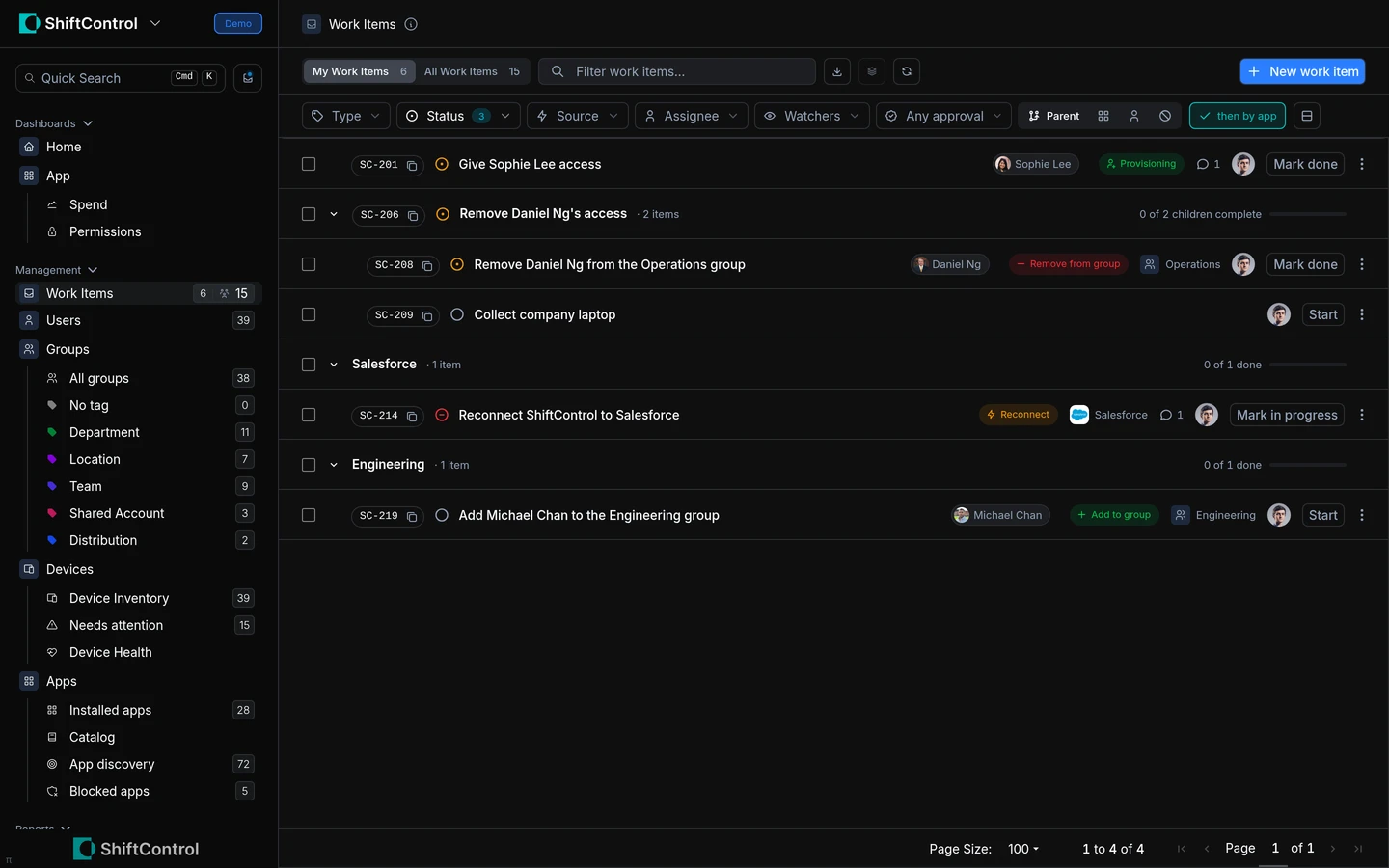
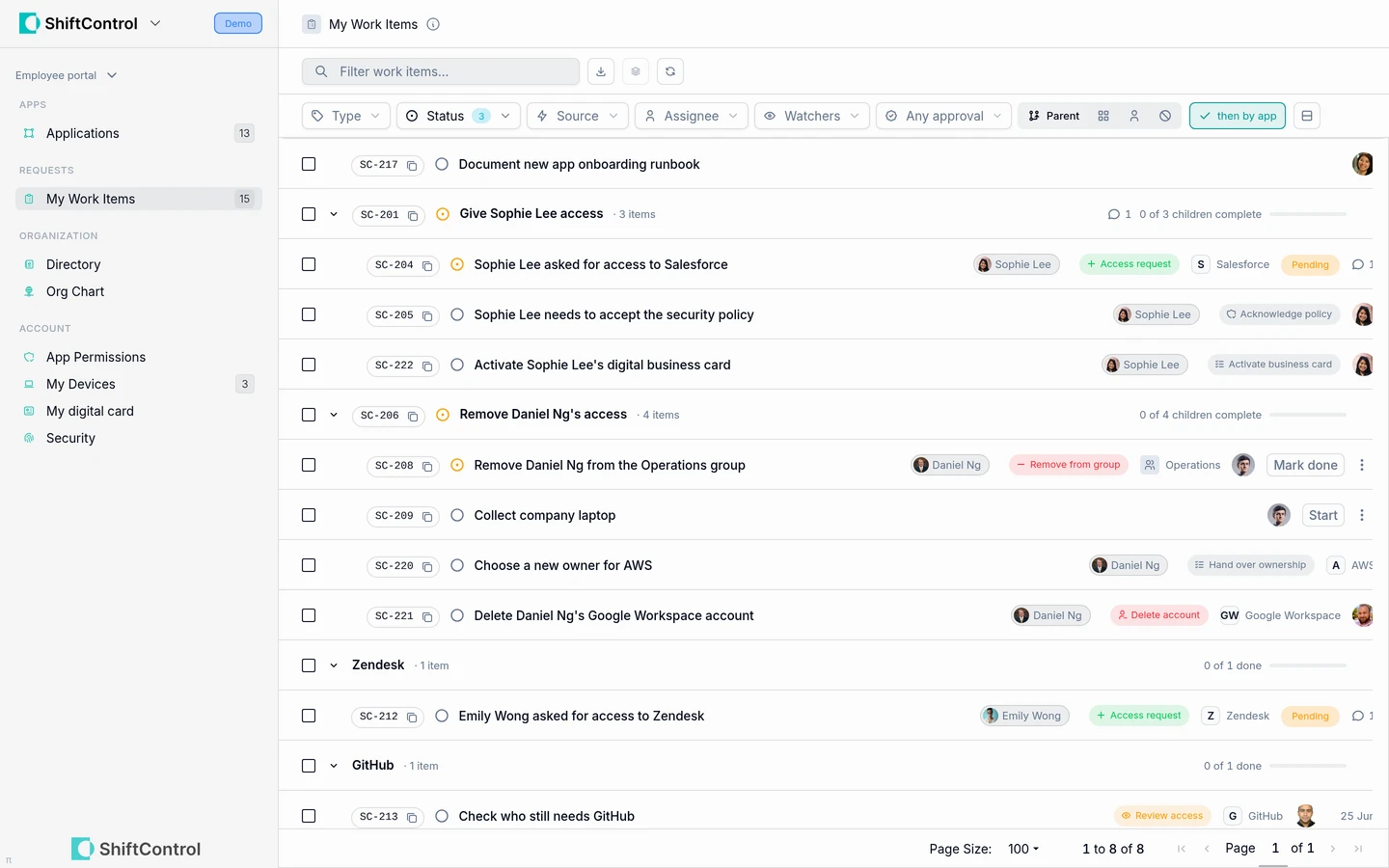
- See the work that matters. Admins can switch between items assigned to them and all open work, filter by columns such as status, type and assignee, and group related work by app or under a parent request or employee change. Take action on a row or manage several selected items together.
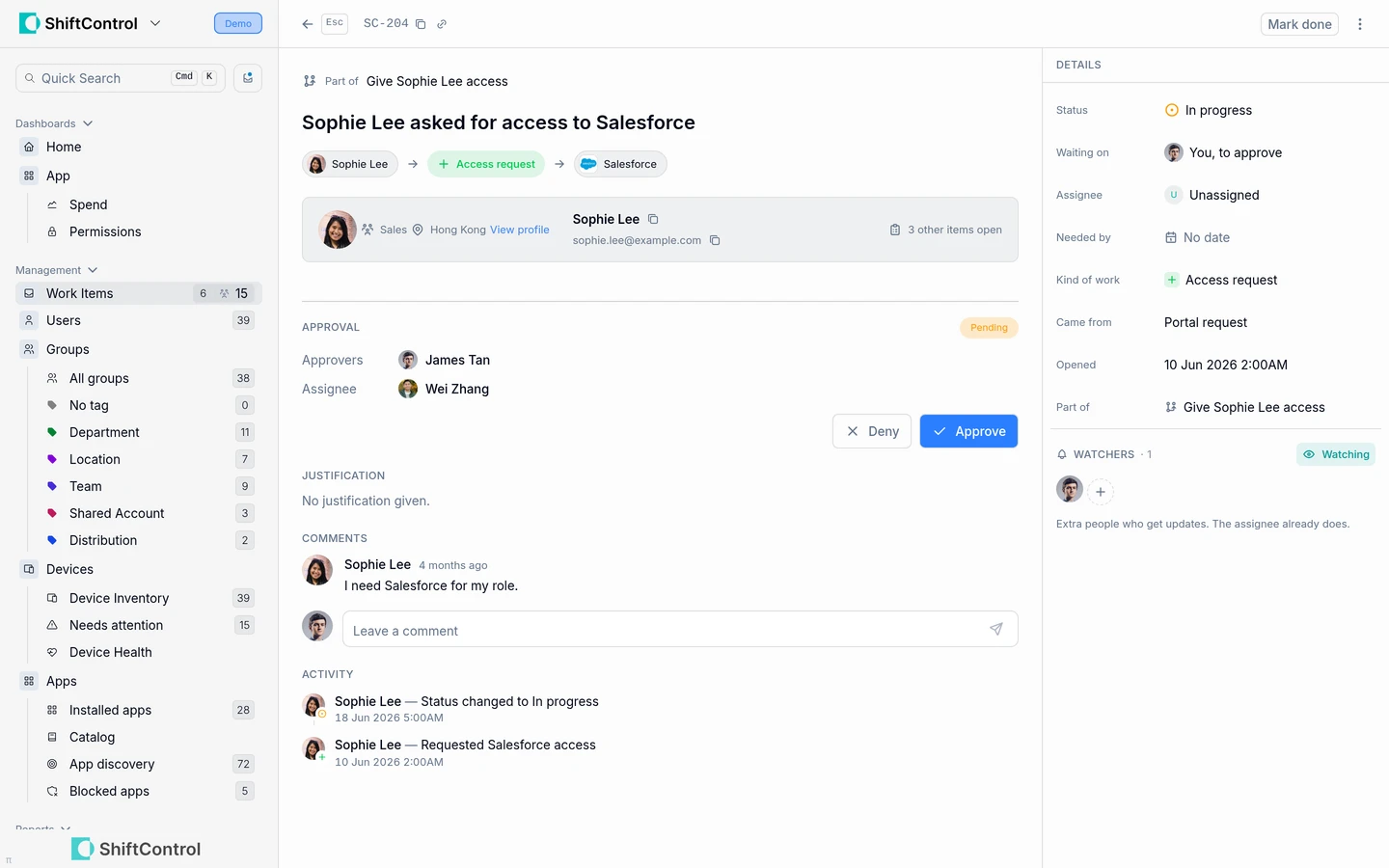
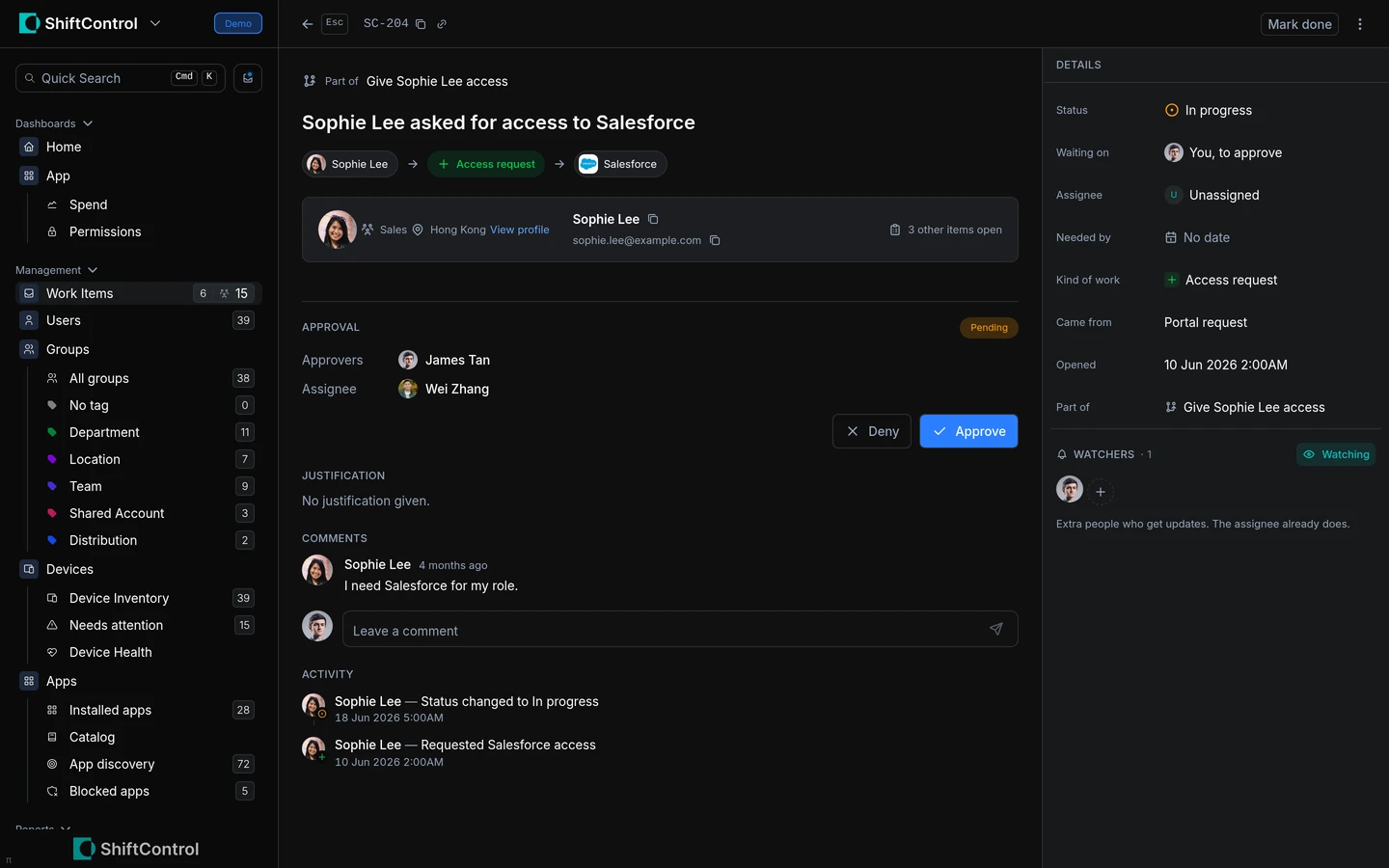
- Follow the whole story. Open an item to review its status, due date, notes, steps, comments, watchers and activity. Admins can reassign work when priorities or ownership change.
- Work follows the person responsible. Lifecycle work can start automatically for onboarding and offboarding, while broken app connections and ownership handovers can also surface in the queue. App and group changes appear as steps when someone requests access or membership. Work goes to the app’s primary admin when one is available, otherwise to the default admin selected for your organization.
- Employees can move their own work forward. My Work Items brings together work assigned to you, requests you made, and items you are involved in. Its navigation badge includes your own requests. Assignees can start work, mark it done, update notes and comment without needing an admin role. Read-only admins can also update and comment on their own assigned items from the admin Work Items screens or the employee portal.
- Requests have a clear approval path. The default route tries the requester’s manager, then the app’s primary admin, then the organization’s default admin. When the requester is the org’s default admin and nobody else can approve, the request is approved automatically; the confirmation says, “You’re the approver for this request, so it was approved automatically.” Approvers can act from an email link or in the portal. After approval, the fulfillment step goes to the person who will make the change, with one action-required email and one tracked fulfillment task for each approved request.
- Close the loop automatically. When connected provisioning confirms an app assignment or removal, or an app can fulfill access itself, its setup step can close automatically. Duplicate open setup work for the same person and app is avoided.
- Bring your AI assistant into the queue. With the ShiftControl MCP connection, an AI assistant can find work items, approve or deny requests it is allowed to decide, and update item status.
Getting Started
- In the admin portal, open Settings → Organization → General → Features and turn on Work Items.
- Turn on App Access Requests as well if employees should request app access through the portal. Work Items must be on for request actions to appear.
- Open Settings → Organization → Product configuration → Work Items. Set the Default admin to provide a fallback owner and approver, and review Email notifications to enable work item email and set the time between digests.