Google Workspace quietly creates a guest account whenever someone on your team invites an outside person to Google Chat. Until now, ShiftControl listed those guests like everyone else, so they padded your user totals, showed up as “Never signed in”, and even counted toward your seat estimate. Not anymore. ShiftControl now recognises guest accounts and keeps them in their own lane.
How It Works
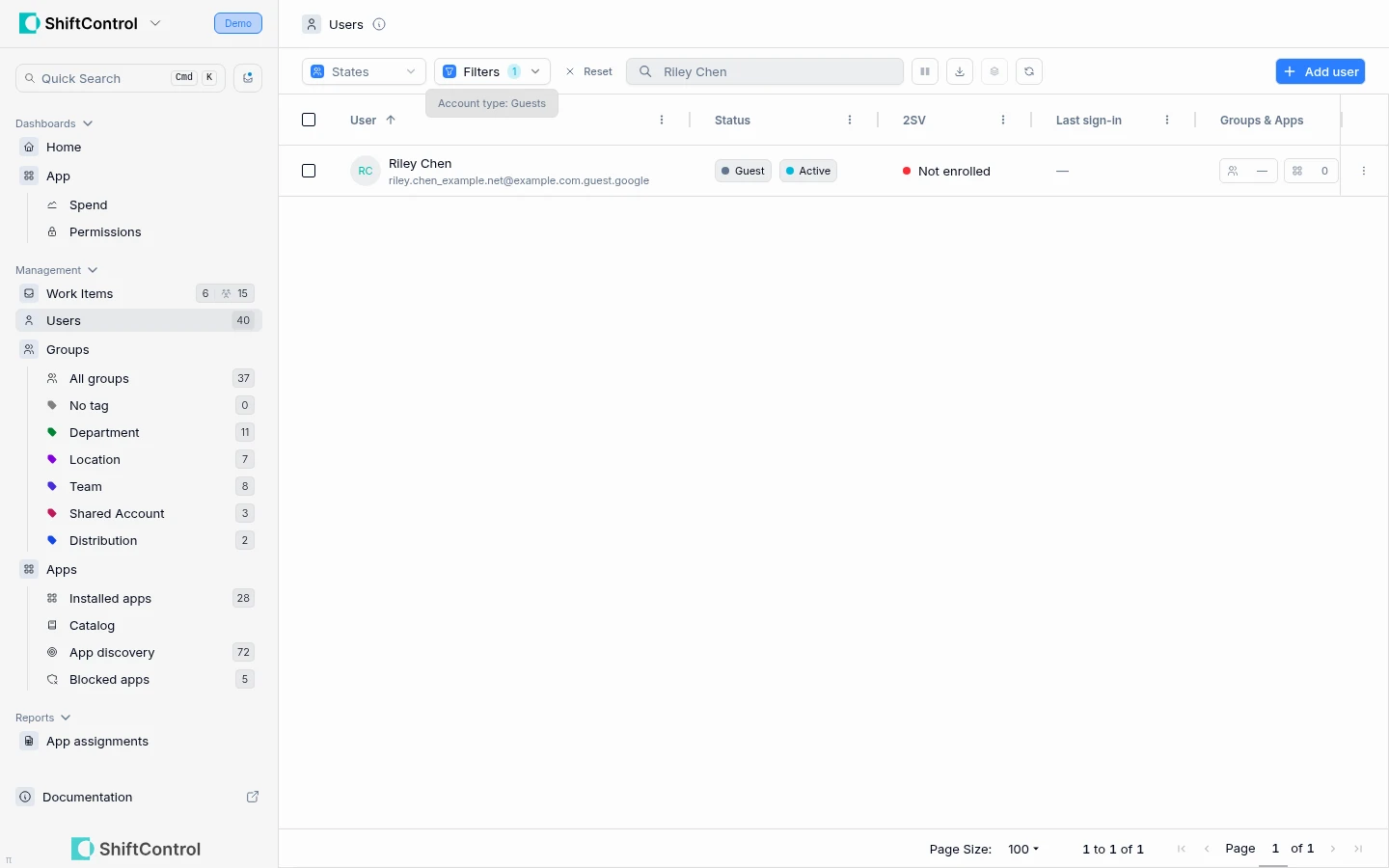
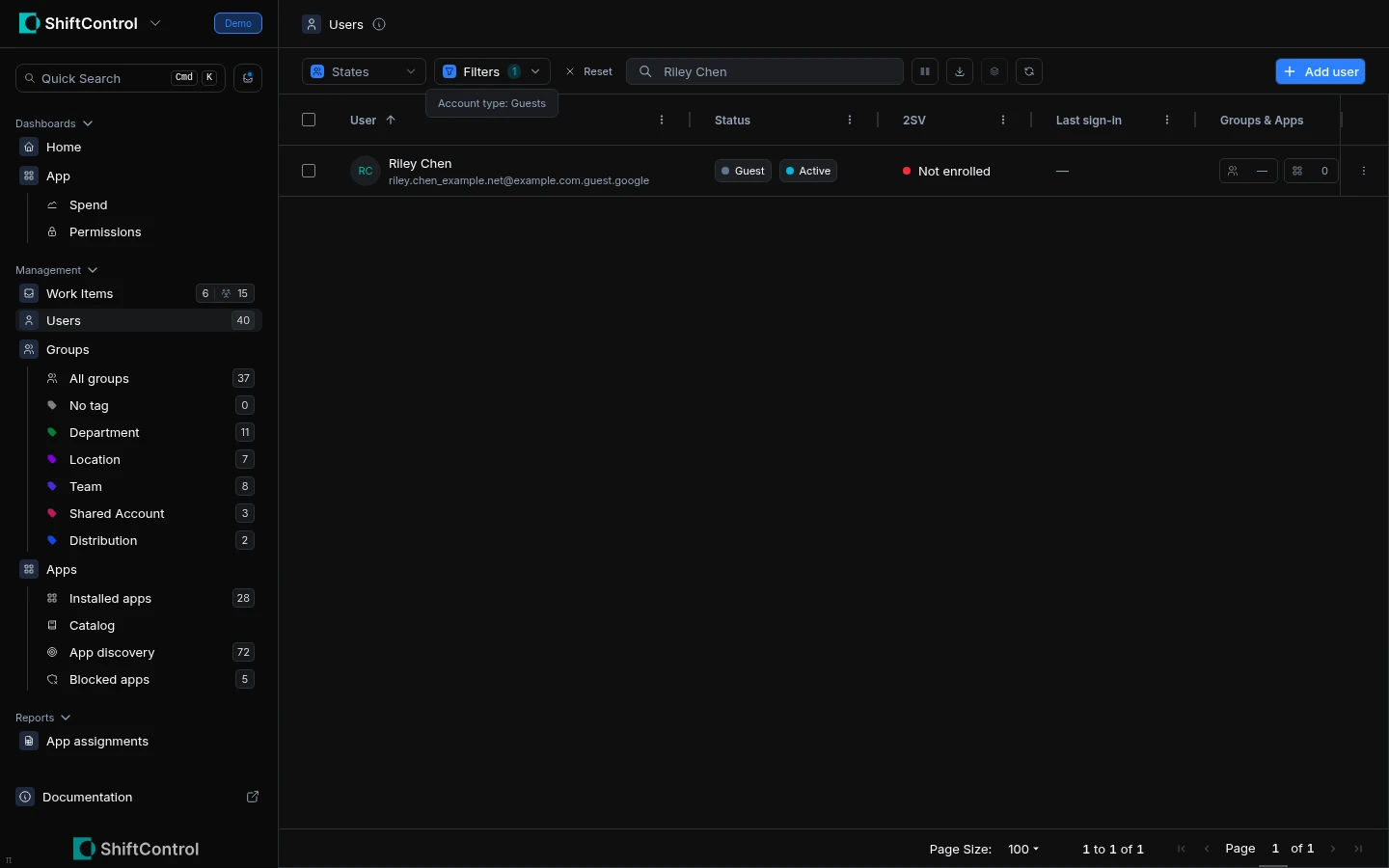
- A Guest badge appears next to guests in the Users list, in the user details panel and in group member lists, with the guest’s real email address.
- A new Account type filter on the Users list lets you show only guests or only members.
- Invitation pending shows for guests who haven’t accepted their invite yet, instead of “Never signed in” or a password reset warning.
- No sign-in emails for guests. Guests set up their account from Google’s own invitation, so we no longer offer to send them activation instructions.
- Cleaner Hub numbers. The People card leaves guests out of your user total, “Never signed in” and “Password only”. Guests without 2-Step Verification still appear under their own “Guests without 2SV” line, because they can still sign in.
- Accurate seat counts. Guests don’t count as paid seats in your seat count or cost estimate. Google gives you 5 free guests for every paid licence, so you’re not paying for them either.
- Groups stay tidy. Membership rules never add guests, and the member picker only offers guests to groups that allow external members, just like Google does.
- AI assistants see it too. Connected AI assistants get the same guest status you see in ShiftControl.
Getting Started
- Open Users in the admin portal.
- Look for the Guest badge, or use the Account type filter to list only your guests.
- Check the People card on the Hub for an updated count without guests.
Nothing to set up: guests are picked up on your next directory sync.