Giving a group access to several apps used to mean opening every app, one at a time, and adding the group to each. Now you can do it from the group itself, in one go.
How It Works
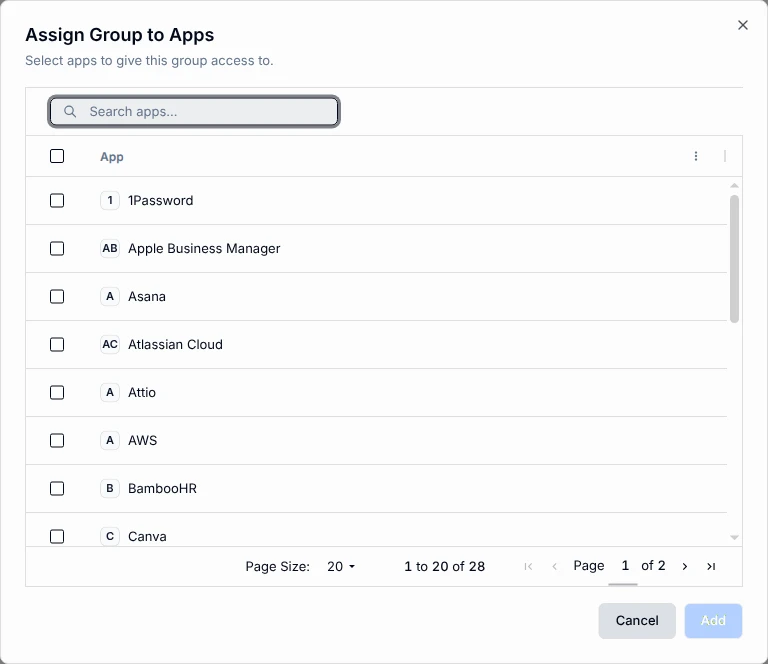
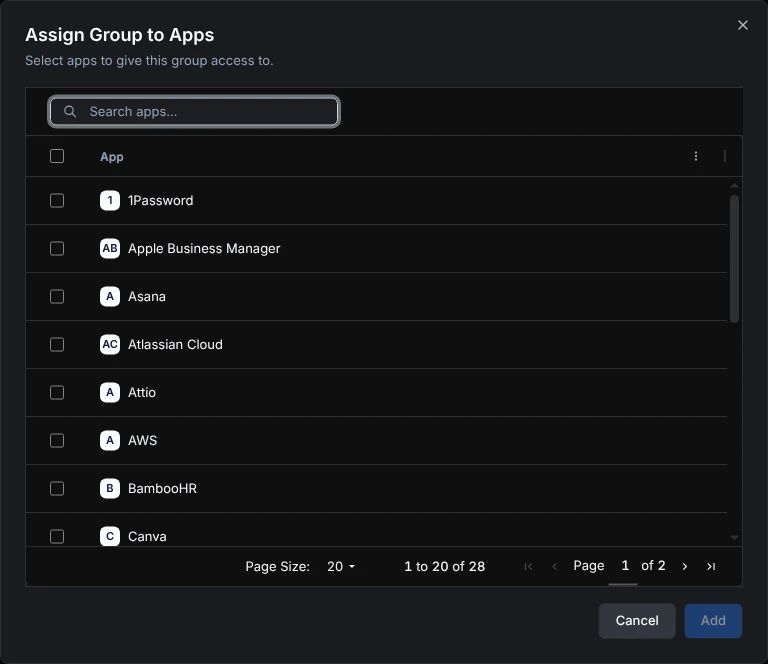
- Start from the group. Open a group and choose Assign to apps. Pick one app or several, confirm, and everyone in the group gets access.
- Same result as before. Assigning from the group works exactly like adding the group from each app’s page, so access, provisioning and app counts all stay in step.
- Several groups at once. Select groups in the groups list and use Assign to apps from the bulk actions. Apps they already have are kept.
- See what a group grants. The group’s Apps panel lists every app the group gives access to, including through linked groups in your other directory.
Getting Started
- Go to Groups and open the group you want to give access.
- Choose Assign to apps and select the apps.
- Confirm, and check the group’s Apps panel to see the new assignments.